Choose the workflow first
Use text-only for concepts, image input for identity and product shape, video input for timing, and audio input for rhythm or mood.
1.1 Basic Prompt Formula
1.2 Multimodal Reference Control
2.1 Slogan / Title Text
2.2 Subtitles
2.3 Speech Bubbles
3.1 Multi-angle Subject Reference
3.2 Multi-image Reference
4.1 Action Reference
4.2 Camera Movement Reference
4.3 Effects Reference
5.1 Add / Remove / Modify Elements
5.2 Video Extension
5.3 Track Completion
聯網調研整合
最強的 Seedance 指南都在重複同一件事:先選工作流程,再寫提示詞;每個素材都要有明確職責;描述影片時要寫動作和鏡頭,而不只是寫一張漂亮畫面。
Use text-only for concepts, image input for identity and product shape, video input for timing, and audio input for rhythm or mood.
For complex clips, state the duration, aspect ratio, shot count, and shot order before the cinematic details.
Write whether Image 1 locks identity, Video 1 controls movement, or Audio 1 controls pacing. Do not leave reference roles implicit.
If the result drifts, change only the identity note, motion note, camera note, or constraint. Small revisions are easier to judge.
01 General Tips
Seedance 對自然語言理解很強,但短影片仍然需要明確導演指令。每條提示詞都可以從下面這些可控部件開始搭。
Name the person, product, place, or object that the clip must keep readable.
Give the subject one clear action, then add timing only when the action changes.
Set the physical location, weather, props, background movement, and spatial depth.
Describe lens feel, color grade, lighting, texture, genre, and production quality.
Use film verbs such as dolly in, orbit, locked-off, handheld, tracking, crane, or macro.
Add ambience, dialogue, music mood, voiceover, subtitles, or sound-effect timing.
1.2 Multimodal Reference Control
用影像鎖身份和形狀,用影片鎖動作與鏡頭節奏,用音訊提示節奏或氛圍。不要只上傳素材,要告訴模型每個素材負責什麼。
這些數值來自專案裡的真實生成器設定。
Output duration
4-15s
Ratios
Auto, 16:9, 9:16, 4:3, 3:4, 3:2, 2:3, 2:1, 21:9, 1:1
Resolution
360p, 480p, 512p, 540p, 720p, 768p, 1080p, hd, fhd, 4k
Images
up to 9
Videos
up to 3, 15s total
Audio
up to 3, 15s total
案例庫
每個案例都按內頁指南的方式組織:先看生成結果,再看參考輸入,最後給出可改寫的提示詞。
02
2.1 Slogan / Title Text / 2.2 Subtitles / 2.3 Speech Bubbles
2.1 Slogan / Title Text
Use the last beat of a product story for a short title card or slogan. Keep the phrase simple and say exactly when it appears.
Formula
[Text content] + [appearance timing] + [position] + [text style]
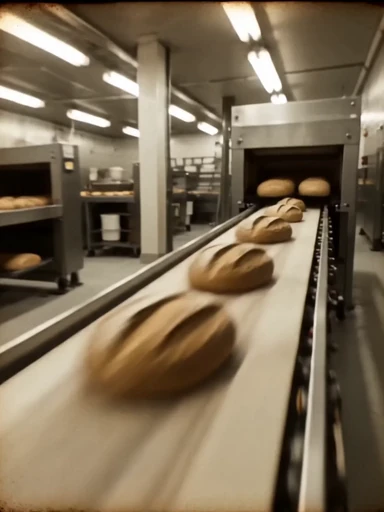
Create a 15-second premium food commercial. Show a disappointed customer, a quick flashback of hand-made craft, then a warm close-up bite. At the final 2 seconds, blur the background and place bold gold text in the center: "REAL BREAD. REAL CRAFT." Keep the text large, readable, and stable.
控制重點
2.2 Subtitles
Subtitles work best when the narration is short and the visual sequence is already organized into slides or beats.
Formula
[Voiceover line] + [subtitle position] + [sync timing] + [slide order]
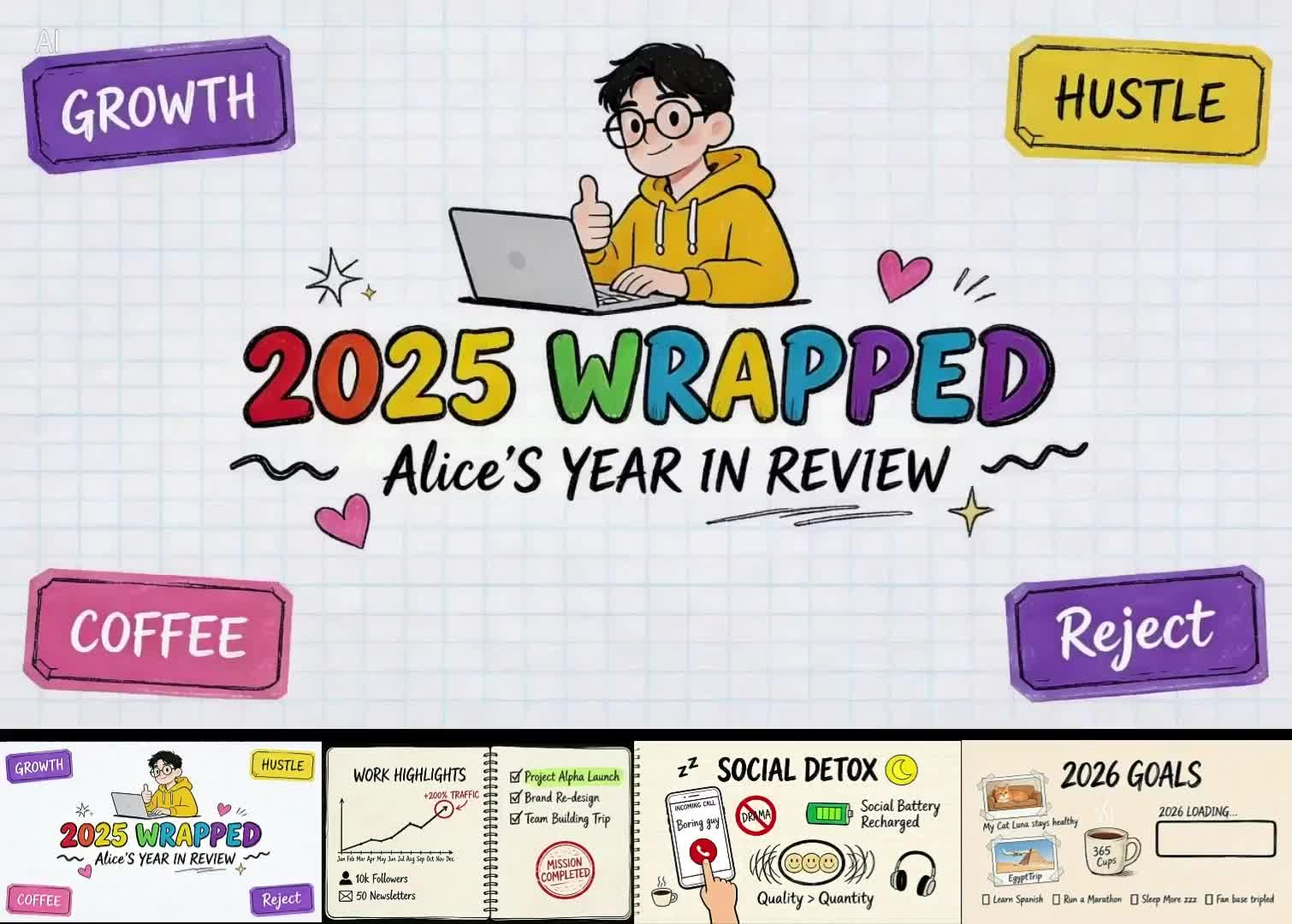
Use the four uploaded slides in order. Generate a calm male voiceover, one short sentence per slide, at normal speaking speed. Add clean white subtitles at the bottom of the frame, synchronized with each spoken sentence. Keep the slide design readable and avoid extra decorative text.
控制重點
2.3 Speech Bubbles
Speech bubbles are useful for stylized ads, social clips, and anime-inspired scenes where the text is part of the art direction.
Formula
[Character] says "[line]" + [bubble position] + [cut order]

Create a high-energy 1990s pop-anime snack commercial. Use Image 1 for the package, mascot style, and vibrant pop color palette. Add comic speech bubbles near the characters: "So crunchy!" and "One more!" The bubbles should pop in with a bounce effect, remain readable, then exit before the final product shot.
控制重點
03
3.1 Multi-angle Subject Reference / 3.2 Multi-image Reference
3.1 Multi-angle Subject Reference
Use multiple product references when silhouette, material, and side details must stay stable during camera movement.
Formula
Extract [Image N subject] + generate [scene] + keep [features] stable
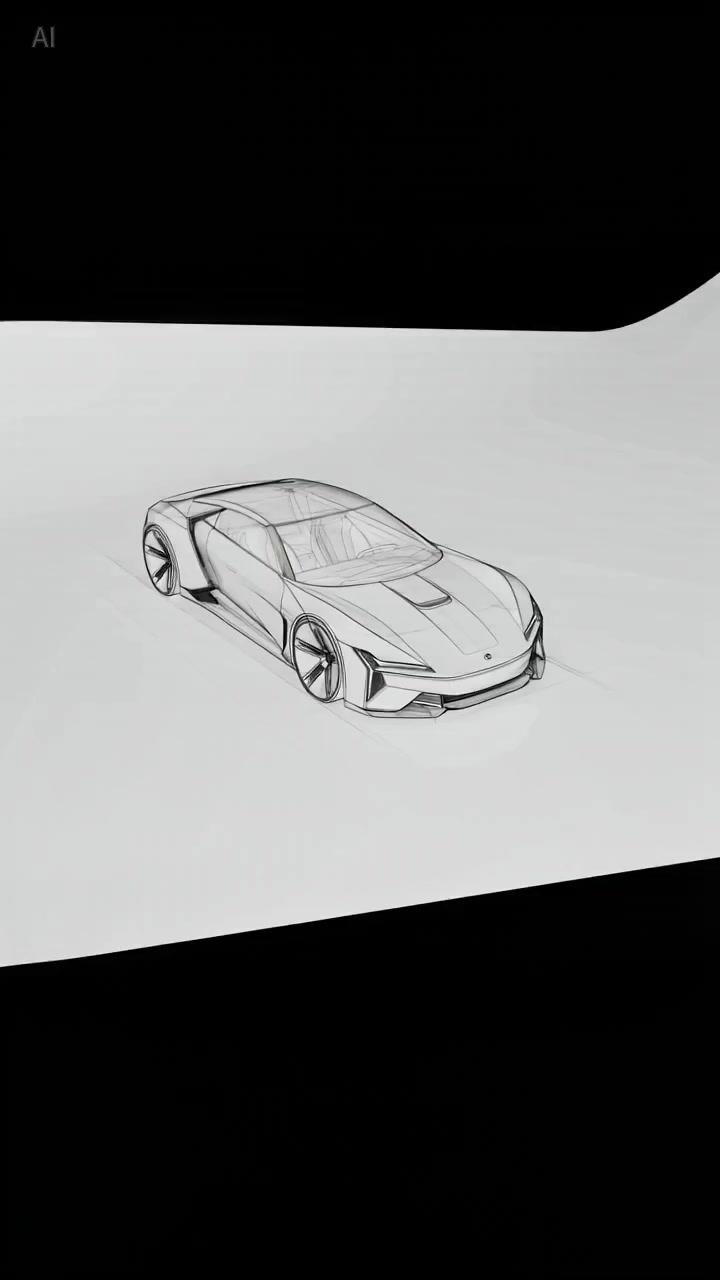
Use Image 1 as the product reference. Preserve the core silhouette, color, reflective material, and front details. Place the object on a clean studio surface, then use a slow 180-degree orbit to reveal front, side, and rear details without changing the design.
控制重點
3.1 Multi-angle Subject Reference
A still interior image can become a renovation, lighting, or staging sequence when the prompt protects the original layout.
Formula
Reference [Image 1 scene] + change [state] + keep [layout] stable
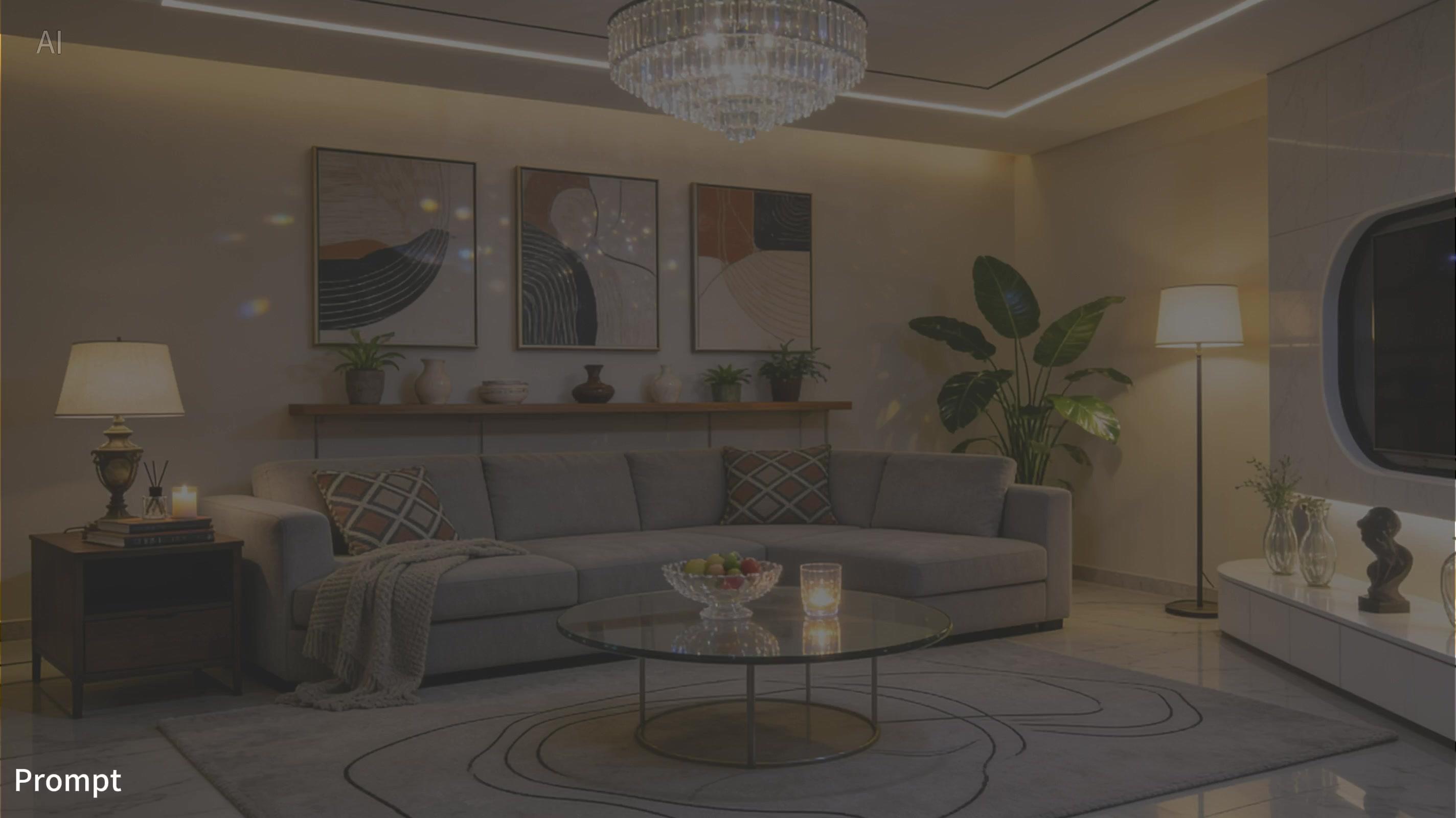
Use Image 1 as the room layout reference. Generate a time-lapse from raw concrete interior to a finished warm living room. Keep wall positions, window placement, and camera angle consistent. Add furniture, soft lighting, and a final light-switch moment where the room turns on.
控制重點
3.1 Multi-angle Subject Reference
Identity references work best when the prompt separates face, wardrobe, emotion, and action.
Formula
Reference [Image N person] + generate [scene] + keep identity consistent
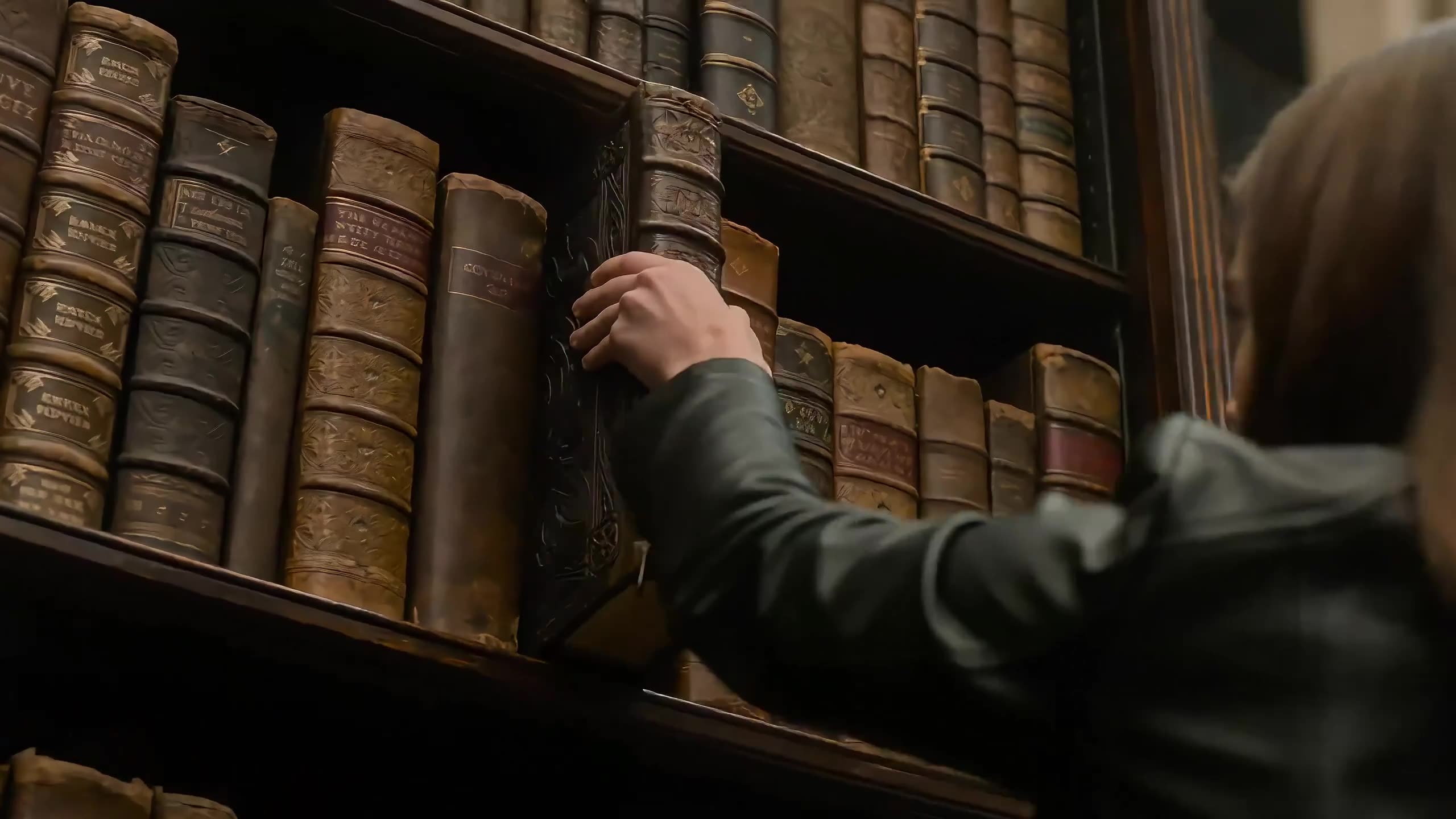
Use Image 1 for the character identity, face shape, hair, wardrobe, and dim library mood. Start with a close-up of the character reading alone, then slowly pull back as papers move and a glowing doorway appears. Keep the character consistent while the scene changes.
控制重點
3.2 Multi-image Reference
For a multi-image sequence, assign each image a beat and describe the emotional arc that connects them.
Formula
Reference [Image 1] + generate [story beats] + maintain [style]
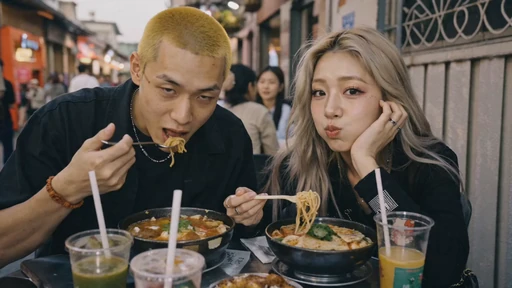
Use Image 1 as the story and mood reference. Create a nostalgic flashback montage on 35mm film: first a warm memory, then a quiet pause, then an intimate interior detail. Use soft grain, dreamlike bokeh, warm highlights, and gentle English background music. Keep cuts rhythmic but readable.
控制重點
04
4.1 Action Reference / 4.2 Camera Movement Reference / 4.3 Effects Reference
4.1 Action Reference
Use a video reference when the key value is timing, body motion, blocking, or the rhythm of a chase.
Formula
Reference [Video 1 action] + generate [new scene] + keep action details
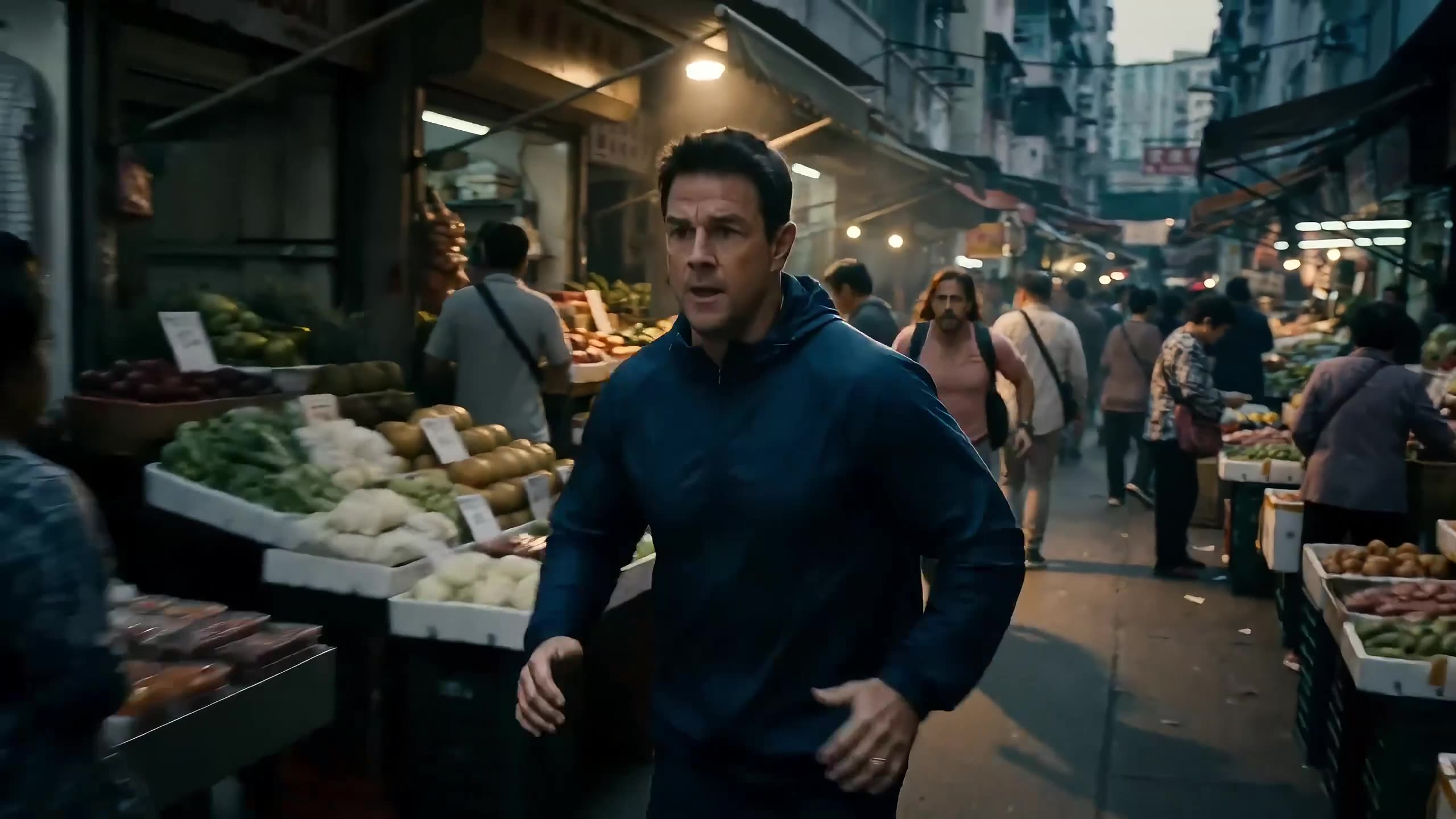
Use Video 1 for the running rhythm, camera distance, obstacle timing, and main character. Generate a dusk market chase in one continuous shot: close behind the character, side-track through the crowd, then push forward as the character glances back. Add footsteps, crowd ambience, and distant shouts.
控制重點
4.2 Camera Movement Reference
Camera references are useful when the move is the product: long takes, push-ins, POV, 360 pans, or handheld rhythm.
Formula
Reference [Video 1 camera move] + generate [new subject] + keep camera path
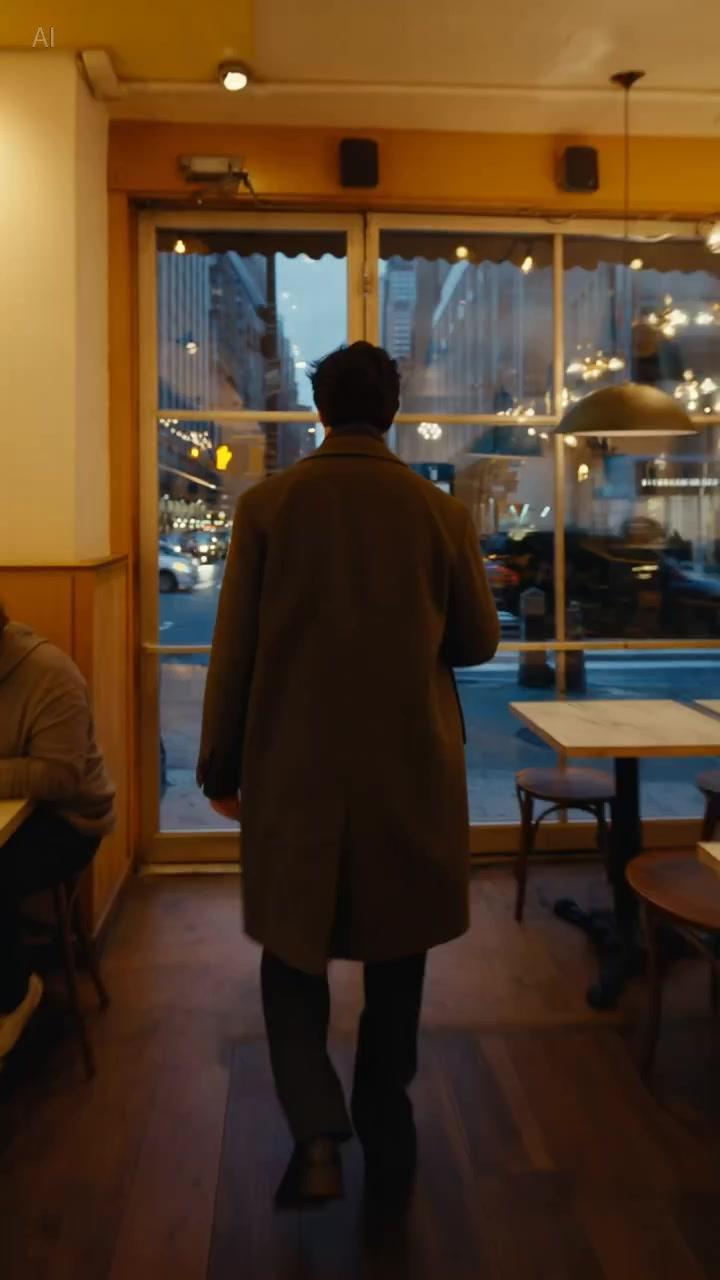
Reference the camera path from Video 1: a back-following steadicam move through changing light zones. Generate a modern city walk from a warm cafe interior to a busy street and then into a subway stairwell. Keep the lighting transition smooth and do not cut away from the main subject.
控制重點
4.3 Effects Reference
Effects references help control particles, glows, energy trails, assembly motion, and the timing of visual transformations.
Formula
Apply [effect trajectory] to [Image 1 subject] + keep timing
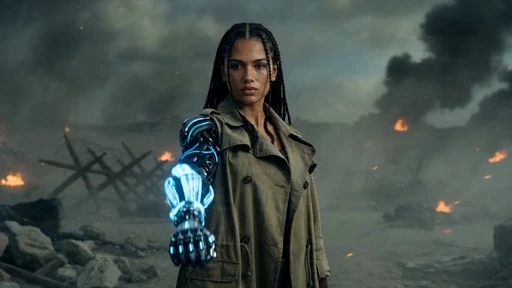
Use Image 1 for the character design. Generate a close-up transformation scene: glowing blue runes appear, energy spreads across the face and arm with timed particles, black armor plates assemble in sequence, then the final hero pose locks in smoke.
控制重點
05
5.1 Add / Remove / Modify Elements / 5.2 Video Extension / 5.3 Track Completion
5.1 Add / Remove / Modify Elements
Editing prompts need a narrow target. Name the element to remove or replace, then protect motion, framing, and lighting.
Formula
Remove [element] from [Video 1] + keep [everything else] unchanged
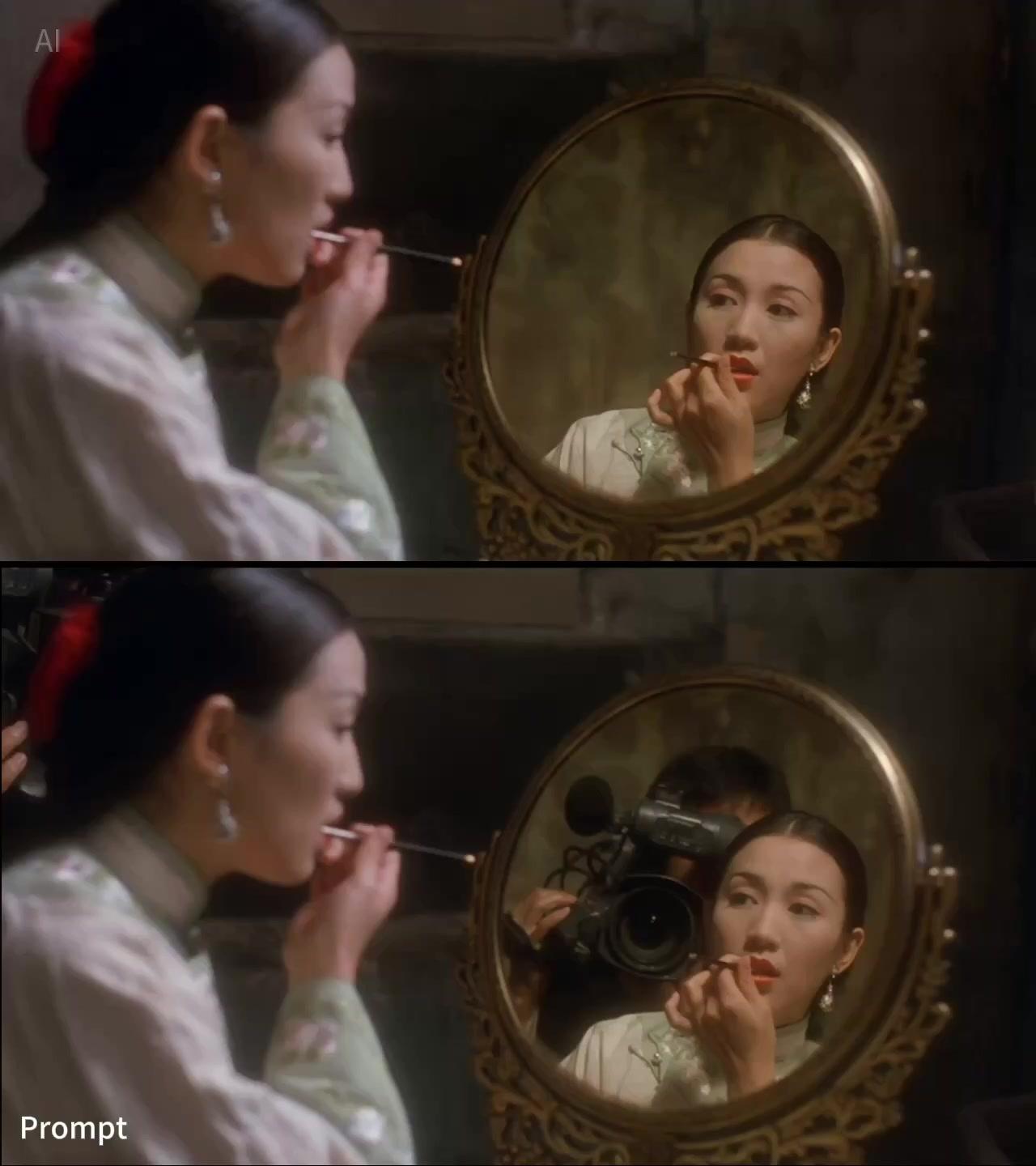
Remove all visible production mistakes from Video 1, including stray tools, tape marks, and unwanted gear. Keep the actors, hand motion, camera movement, room lighting, and timing unchanged. Do not introduce new props or change the original composition.
控制重點
5.2 Video Extension
Extension works when the new action naturally follows the final motion, camera angle, and tone of the original clip.
Formula
Extend [Video 1] backward / forward + [new content description]
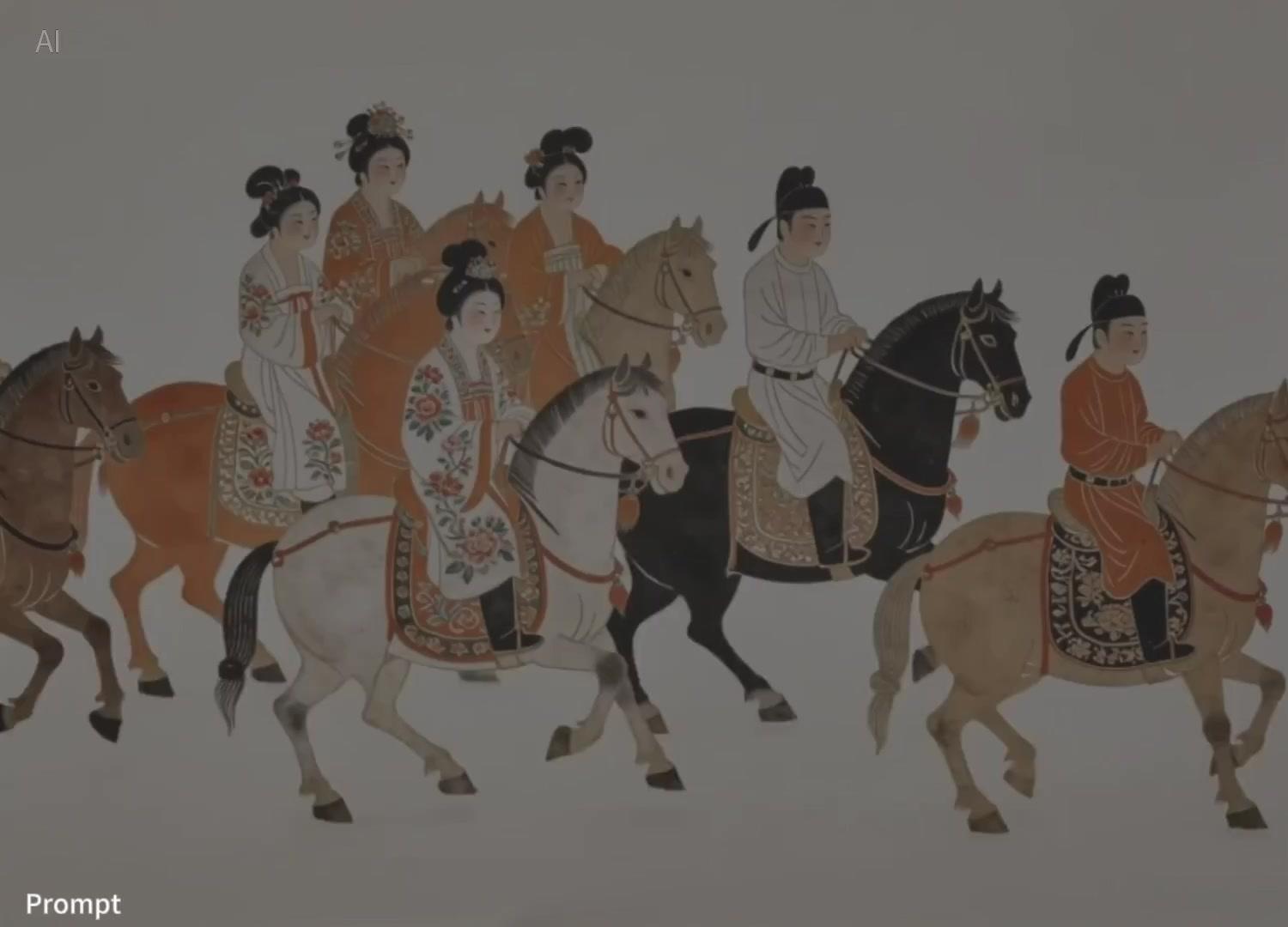
Generate content after Video 1. Continue the existing camera track and classical painting style. The main rider moves toward the blooming tree, picks two orange flowers, dismounts, and presents the flowers to the person waiting ahead. Preserve the original music mood and color palette.
控制重點
5.3 Track Completion
Track completion is best when the first and last inputs have an obvious transformation bridge: color, light, architecture, or subject pose.
Formula
[Video 1] + [transition] + connect to [Video 2] + [transition logic]
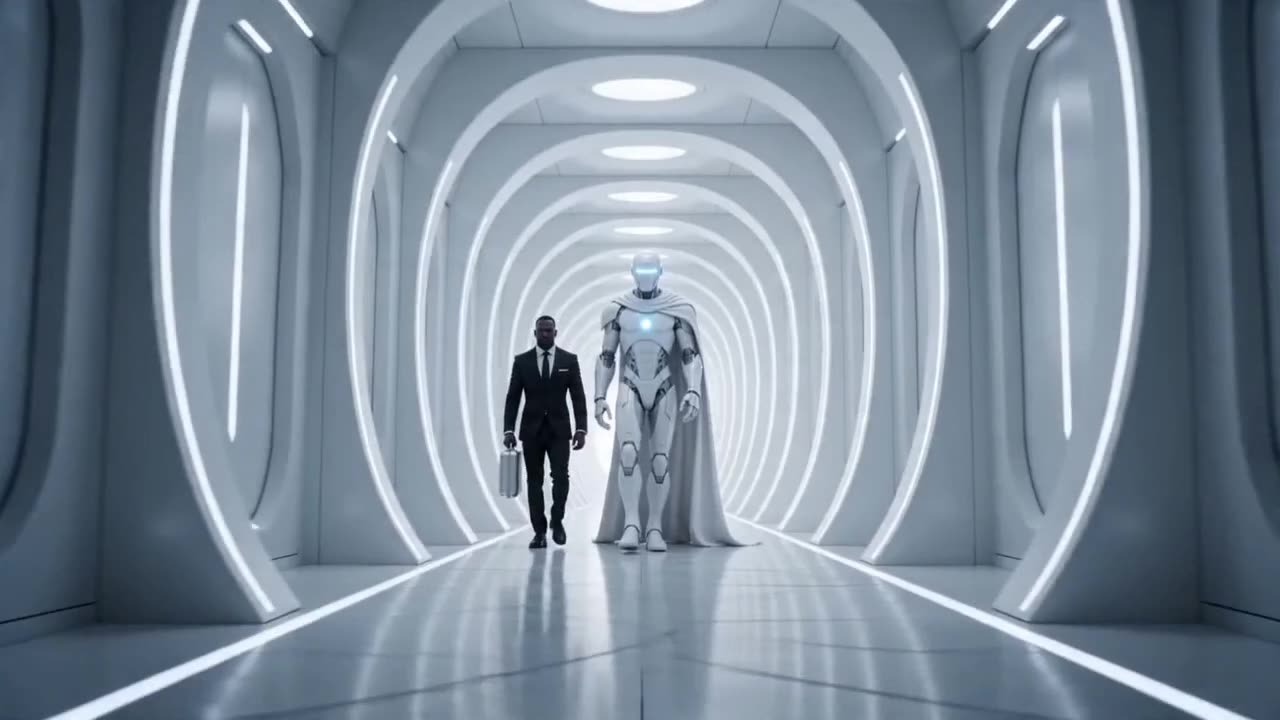
Connect Video 1 to Video 2 in 8 seconds. Start at the ancient pyramid scene, keep the robot centered, then transform sand, stone, and amber light into a clean white future corridor. The robot design remains consistent while the environment morphs smoothly from old world to sci-fi interior.
控制重點
使用主體、動作、環境、美學、鏡頭和音訊。複雜影片要在開頭補充時長、比例和鏡頭順序。
當身份、產品形狀、服裝、布局、首幀或視覺風格必須穩定時,使用影像參考。
當時序、動作節奏、鏡頭路徑、手勢或特效軌跡比源素材外觀更重要時,使用影片參考。
目前工作台支援最多 9 張影像、3 個影片和 3 個音訊檔案,影片和音訊時長限制見上方設定。